Google Search Console: how to set it up and what to check each month
 Mosaddik Billah 5 min read
On this page
If you only use one free SEO tool, make it Google Search Console. It’s Google telling you, directly, which searches your site shows up for, which pages it has indexed, and what it thinks is broken. Analytics tells you what visitors do once they arrive; Search Console tells you how they found you, and why some pages never get found at all.
Setting it up takes ten minutes. Using it well takes about twenty minutes a month. Here’s both.
1. Add your site#
Go to search.google.com/search-console, sign in with a Google account the business controls (not a freelancer’s personal one), and add a property. You’ll be asked to pick one of two types:
- Domain property (
example.com). Covers everything:wwwand non-www,httpandhttps, and every subdomain. You verify it by adding a TXT record to your domain’s DNS. This is the one I recommend. - URL prefix property (
https://www.example.com/). Covers only URLs that start with exactly that address. Easier to verify (an HTML tag or file works), but it’s easy to end up watching the wrong version of your site.
On Wix, you can skip the manual work: the SEO setup checklist in the dashboard connects Search Console for you, verifies the site and submits the sitemap. If your domain is connected to Wix, that’s the quickest route.
Verification can take a little while to go through, especially for DNS. Don’t panic if it fails the first time; wait an hour and try again.
2. Submit your sitemap#
A sitemap is a list of the pages you want Google to know about. Most platforms create one automatically:
- Wix:
https://www.example.com/sitemap.xml - WordPress with Yoast or Rank Math: usually
/sitemap_index.xml - Most other platforms: try
/sitemap.xml
In Search Console, open Sitemaps, paste the address, and submit. After a few days it should say Success with a count of discovered pages. If that number is far lower than the number of pages on your site, something is keeping pages out, and that’s worth looking into.
Then wait. Most reports need a few days of data before they’re useful.
3. The monthly check: four reports#
You don’t need to live in Search Console. Once a month, open these four.
Performance#
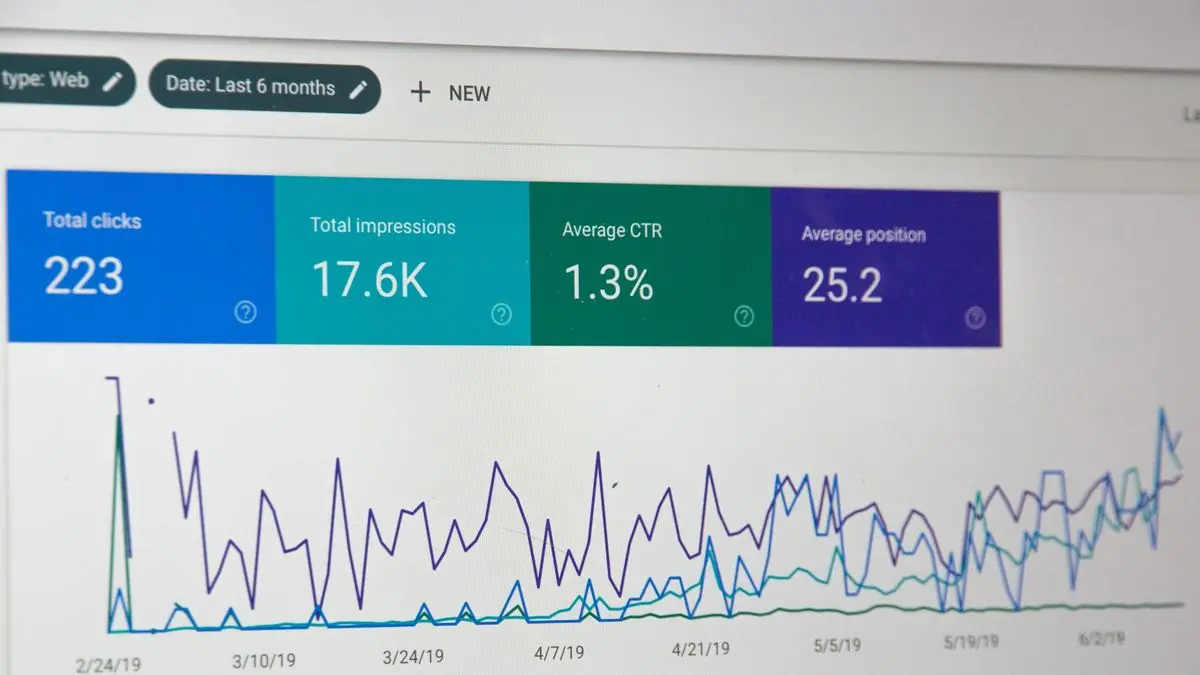
This is the main report. It shows four numbers for searches on Google:
- Clicks: how many times someone clicked through to your site.
- Impressions: how many times your site appeared in results, whether anyone scrolled to it or not.
- CTR: clicks divided by impressions.
- Average position: your average ranking for those searches. Lower is better; 1 is the top.
Switch the date range to last 3 months and compare it with the previous period. Then click the Queries tab and the Pages tab. What I look for:
- Queries with lots of impressions and few clicks. You’re showing up but people aren’t choosing you. Often the page title or description doesn’t match what they searched for. Rewriting it is one of the cheapest wins in SEO.
- Queries where you’re on page two (average position around 11 to 20). These pages are close. Improving the content, or linking to them from other pages on your site, can be enough to move them up. See internal linking for SEO.
- Pages that suddenly dropped. Check whether they changed, moved, or were deleted.
Search Console keeps 16 months of performance data, so you can always compare with the same month last year.
Pages (indexing)#
Under Indexing → Pages, Google splits your URLs into indexed and not indexed, with a reason for each one that isn’t.
Don’t panic at a long “not indexed” list. Plenty of reasons are normal: redirects, pages marked noindex on purpose, duplicate versions Google chose not to show. What matters is whether pages you care about are in that list. If your main service page says “Crawled – currently not indexed”, that’s a problem worth fixing; if an old tag page does, it isn’t.
Core Web Vitals#
This report groups your pages into Good, Needs improvement and Poor for real-world loading speed, responsiveness and layout stability, using data from Chrome users. Small sites often show “not enough data”, which is fine. If you do see poor URLs, my post on Core Web Vitals explains what each metric means and how to fix it.
Manual actions and security issues#
Two quick clicks, usually empty. A manual action means a person at Google found the site breaking their spam rules; a security issue means something like hacked content or malware. You’d normally get an email too, but it costs nothing to check.
4. When you publish or change a page#
Use URL Inspection, the search bar at the top. Paste the page’s address and you’ll see whether it’s indexed, when Google last crawled it, and which canonical URL it chose.
For a new or heavily updated page, click Request indexing. It doesn’t guarantee anything, but it usually gets the page looked at sooner than waiting. Don’t request indexing for every page on your site every week; it doesn’t help and there’s a daily limit.
A few things that confuse people#
- Search Console numbers won’t match Analytics. They measure different things: one counts clicks on Google, the other counts visits in the browser. Some gap is normal.
- Average position is an average. A page that ranks 3rd for one query and 40th for another can show an average around 20.
- Data lags by a couple of days. Today’s and yesterday’s numbers are often incomplete.
- Only Google is covered. Bing has its own version, Bing Webmaster Tools, and it can import your Search Console settings.
If you’d like a site that’s set up properly for search from the start, I do Wix website design with the SEO basics built in.
Comments