How to create a Triggered Email in Wix, step by step with screenshots
 Mosaddik Billah 8 min read
On this page
Triggered Emails are how a Wix site sends its own emails from code: a welcome note after a sign-up form, a confirmation with the visitor’s details in it, a follow-up after a booking. The code part is short. Getting the email ready in the dashboard is where people get stuck, because the menu is hidden until you turn on code, and Wix asks for a few things in a particular order.
This guide walks through that dashboard part, one screen at a time. I made a fresh, blank Wix Studio site to take these screenshots, so what you see is exactly what a new site looks like. Click any screenshot to open it full size and step through the rest with the arrow keys.
When you’re done, you’ll have a published email with an ID you can call from code. The code itself is in the companion post, how to send emails from Wix with Velo.
1. Turn on code for your site#
Triggered Emails live under Developer Tools in the dashboard, and that menu only appears once the site has code turned on. On a new site it isn’t there at all, and going to the page directly says “This page isn’t available”.
Open your site in the editor and:
- Click the { } icon in the left toolbar. On a new Wix Studio site this opens the AI Code Assistant; click Start Coding Manually at the bottom of the panel. (In the classic Wix Editor, turn on Dev Mode in the top menu instead.)
- The code panel opens, and Developer Tools now appears in its menu.
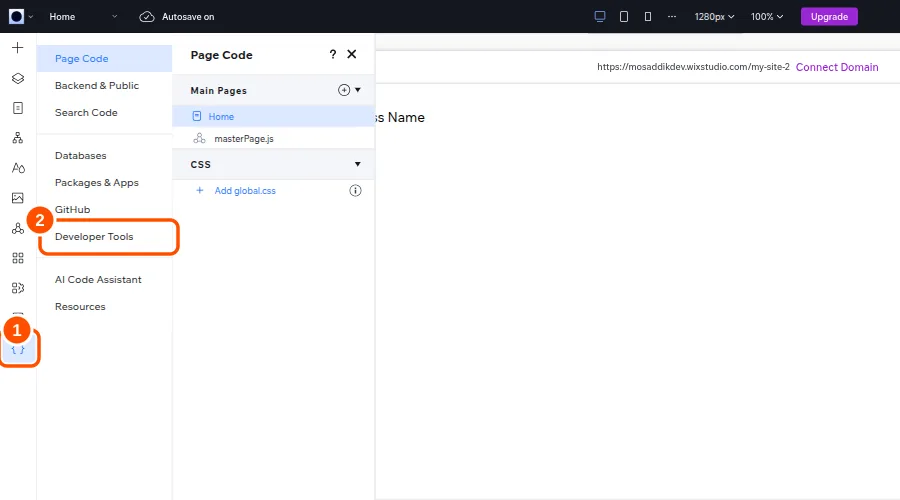
You don’t need to write any code yet. Turning it on is enough for the dashboard menu to show up.
2. Open Triggered Emails in the dashboard#
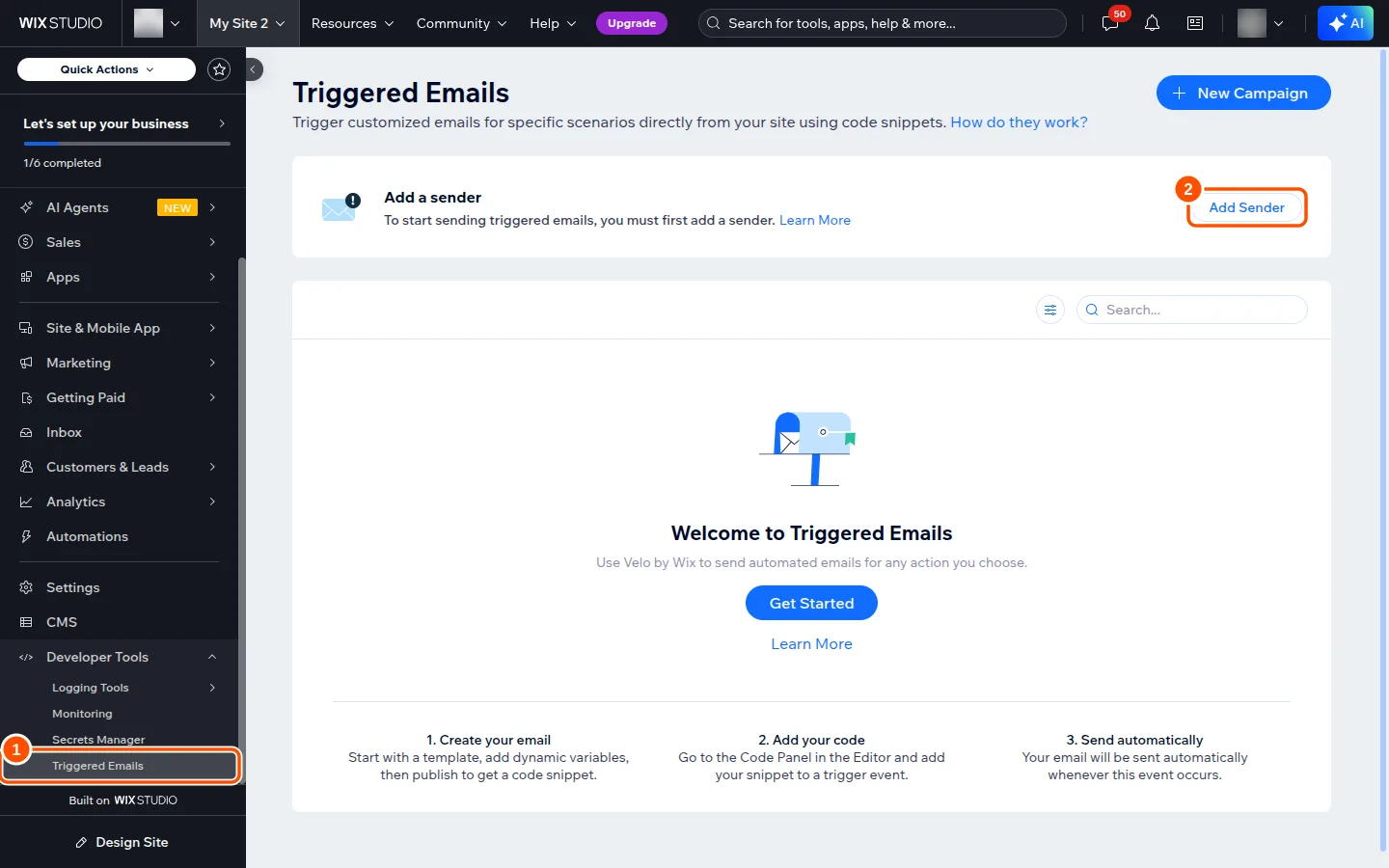
Go to your site’s dashboard. In the left menu, open Developer Tools → Triggered Emails. (You can also get there from the editor: Developer Tools in the code panel, then Triggered Emails.)
On a site that has never sent one, you’ll see a notice saying you need to add a sender first. That’s the next step.
3. Add a sender#
Click Add Sender. Wix fills in your account name and login email, which usually isn’t what you want customers to see. Change them:
- Sender’s name: your business name. This is the “From” name in the inbox.
- Reply-to email: where replies should go. Use an address on your own domain if you have one; Wix warns that Gmail or Yahoo addresses are more likely to end up in spam or promotions.
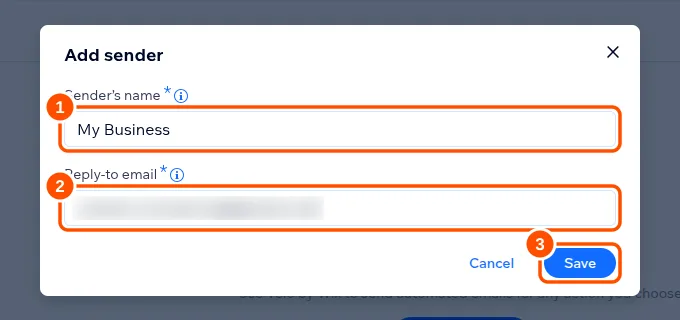
Click Save. Wix then emails a short confirmation code to the reply-to address. Copy it from that inbox (check spam if it doesn’t show up within a minute), paste it in, and click Confirm.
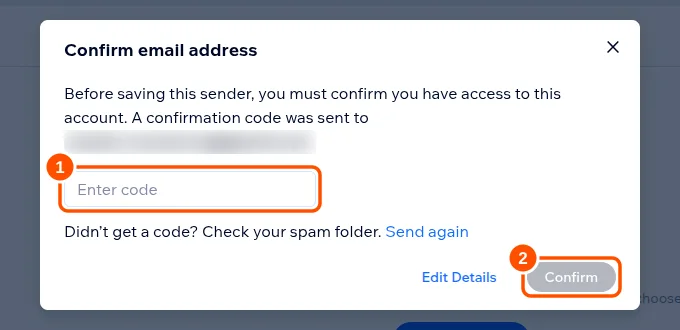
A site has one sender unless you upgrade its email marketing plan, and every Triggered Email uses it.
4. Create a new email#
Back on the Triggered Emails page, click New Campaign at the top right. The email editor opens with a starter template. Two things to change straight away:
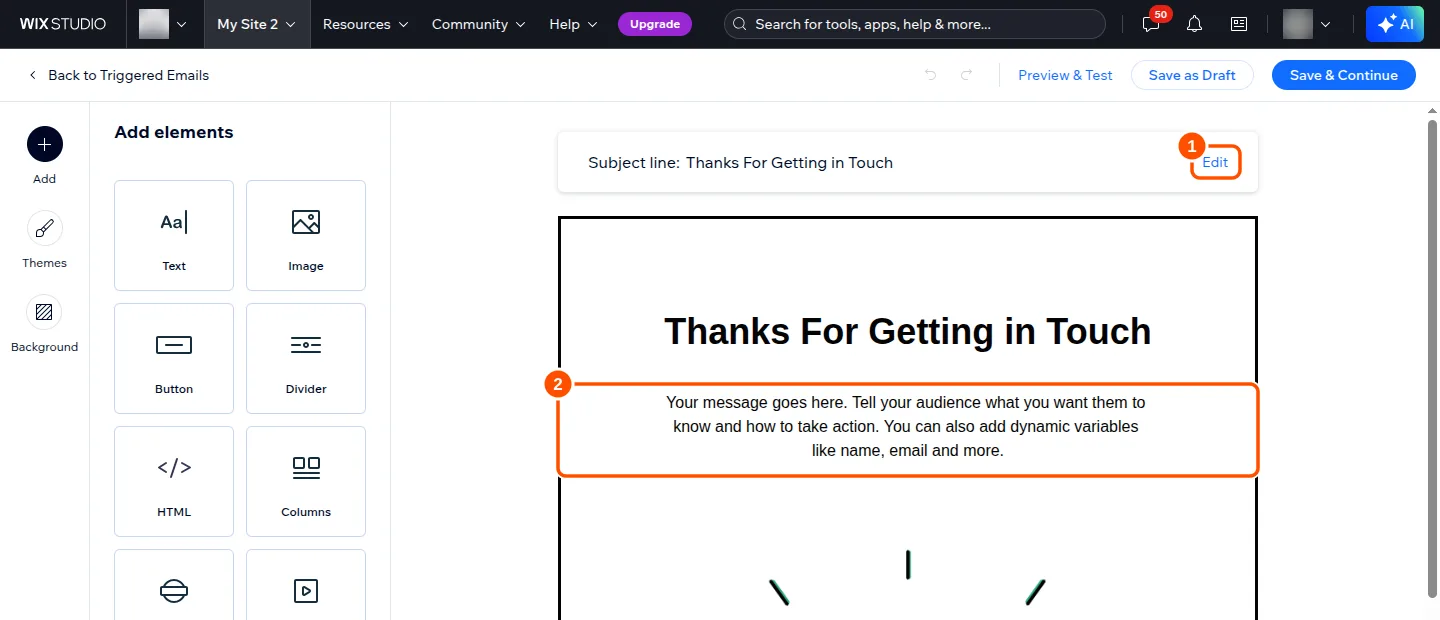
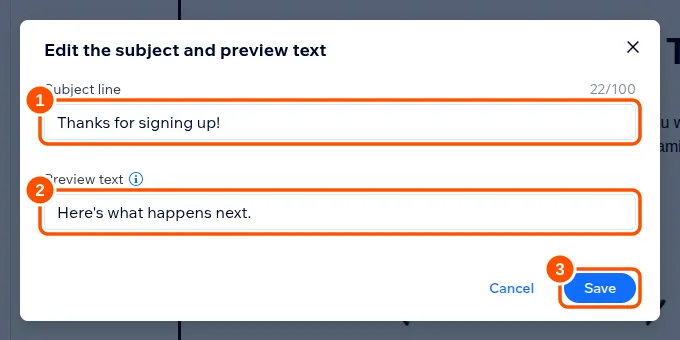
Click Edit next to the subject line. Write a subject, and a short preview text: the grey line most inboxes show after the subject. Then Save.
5. Add variables for the personal parts#
Variables are the bits your code fills in when it sends the email: the visitor’s name, what they signed up for, a link. Click the body text to edit it, type your message, and wherever a personal value goes, click + Add Variable in the left panel.
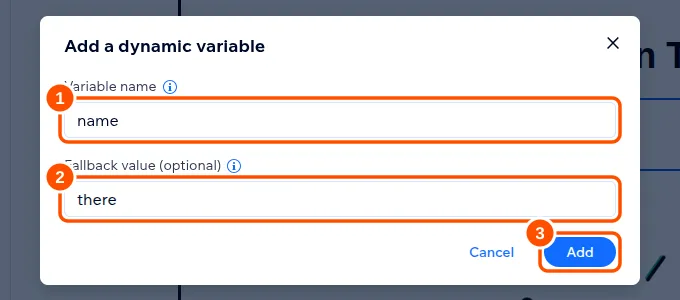
For each variable:
- Variable name: what your code will call it. Keep it short, with no spaces, like
nameorinterest_area. Write it down; you’ll need to spell it exactly the same way in code. - Fallback value: what to show if the code doesn’t send a value. With the fallback
there, a missing name reads “Hi there” instead of “Hi ,”. Fallbacks work in the email body but not in the subject line.
The variable appears in the text as ${name}. In this example the message is “Hi ${name}, thanks for signing up! We’ll send you news about ${interest_area}.”
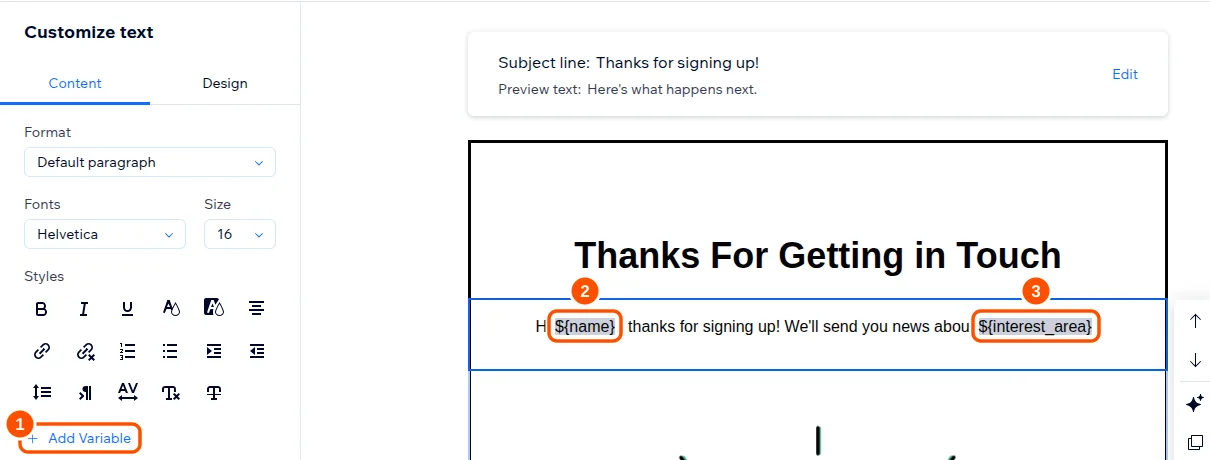
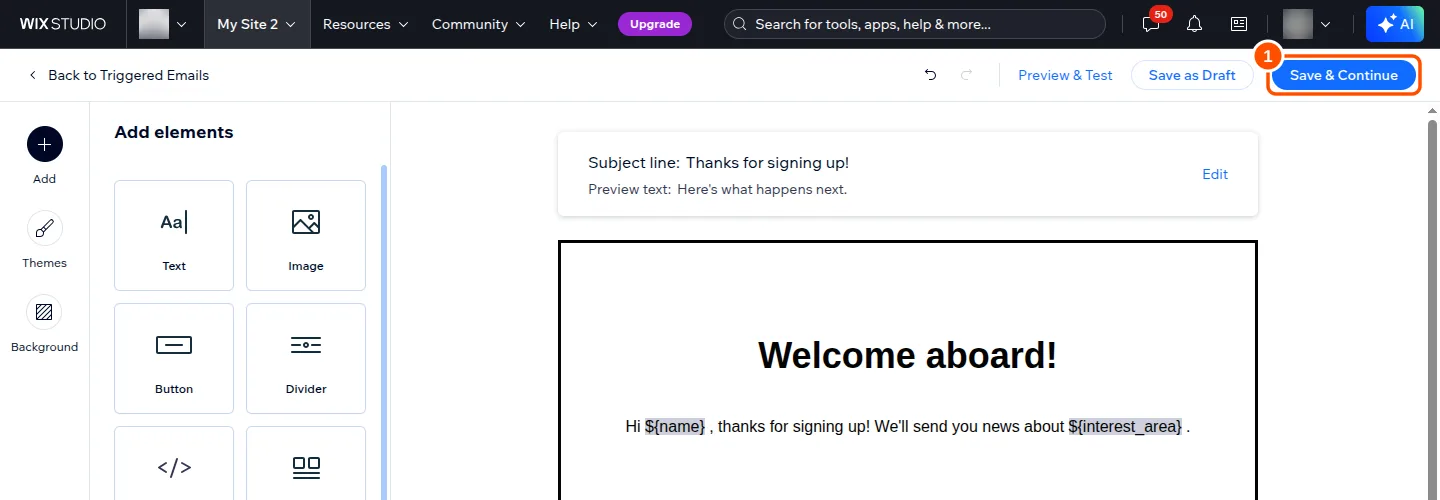
Click Apply to keep the text, and change the heading and anything else you like. Preview & Test at the top sends a test copy to your own inbox, which is worth one click to see it on your phone. Then click Save & Continue at the top right.
6. Set the email ID and copy the snippet#
The last screen is the one your code depends on.
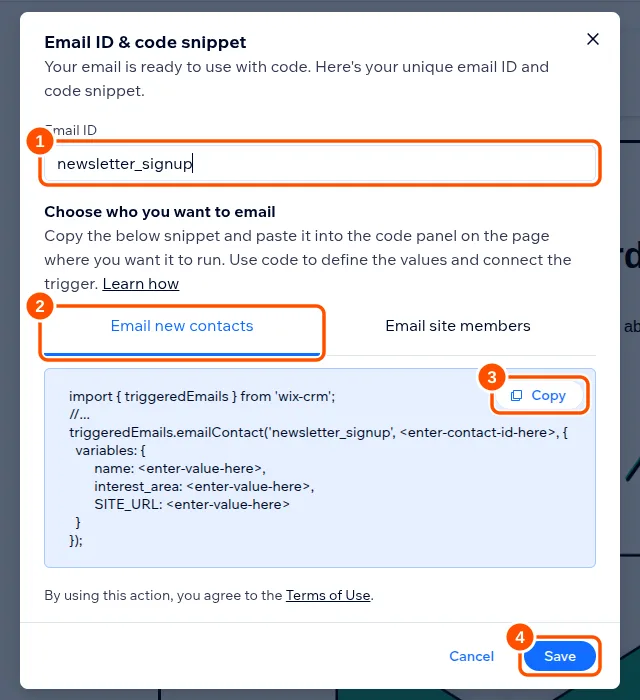
- Email ID. Wix gives it a random ID like
VZT5sBu. Change it to something readable, such asnewsletter_signup. This is the name you’ll use in code, so pick it now; changing it later means changing your code too. - Who you want to email. Email new contacts is for anyone who fills in a form. Email site members is for logged-in members. The snippet changes to match.
- Copy the snippet. It lists every variable in the email, so it’s a handy check that the names are what you meant. (This template also had a
SITE_URLvariable built in, from the link in its footer.) - Save.
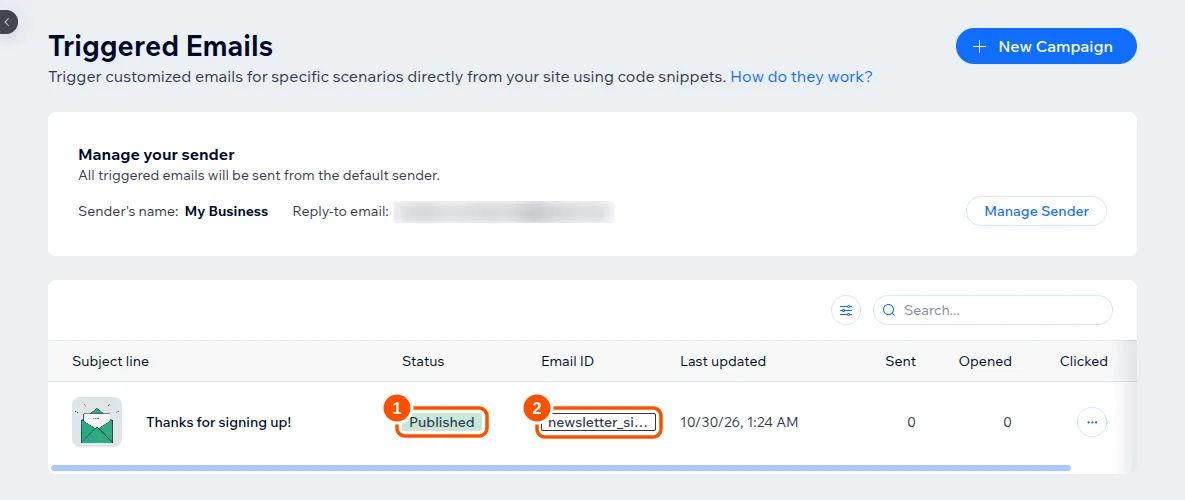
The email now shows as Published in the list, with its ID.
7. Send it from your code#
With the email published, sending it is a single function call: you pass the email ID, the ID of the contact to send it to, and a value for each variable.
triggeredEmails.emailContact("newsletter_signup", contactId, {
  variables: {
    name: "Sara",
    interest_area: "Velo tips",
  },
});
The snippet Wix generated imports triggeredEmails from 'wix-crm'. The current Velo reference uses 'wix-crm-frontend' in page code and 'wix-crm-backend' in backend code, which is what I use. Where the contact ID comes from, how to call this from a form, and why an email sometimes doesn’t arrive are all covered in how to send emails from Wix with Velo.
Quick fixes#
- No Developer Tools in the dashboard: code isn’t on for this site yet. Go back to step 1.
- The confirmation code never arrives: check spam, then use Send again, or Edit Details if the address has a typo.
- A variable shows up empty in the email: the name in code doesn’t match the template exactly.
interestAreaandinterest_areaare different variables. - Drafts don’t send. If you clicked Save as Draft, open the email and finish with Save & Continue.
If you’d rather have this set up and wired into your forms for you, I do Wix Velo development.
Comments